11 Visual Correlation Analysis of Numerical and Categorical Data
Hands-On Exercise for Week 6
(First published: May 17. 2023)
11.1 Learning Outcome
We will learn how to plot data visualisation for visualising correlation matrix with R using 3 methods:
Create correlation matrix using
pairs()of R GraphicsPlot corrgram using corrplot package of R
Create an interactive correlation matrix using plotly
When multivariate data is used, the correlation coefficients of each pair of variables are displayed in a table form known as correlation matrix or scatterplot matrix.
There are three broad reasons for computing a correlation matrix:
To reveal the relationship between high-dimensional variables pair-wisely.
As input into other analyses. For example, people commonly use correlation matrices as inputs for exploratory factor analysis, confirmatory factor analysis, structural equation models, and linear regression when excluding missing values pairwise.
As a diagnostic when checking other analyses. For example, with linear regression a high amount of correlations suggests that the linear regression’s estimates will be unreliable.
When the data is large, both in terms of the number of observations and the number of variables, Corrgram tend to be used to visually explore and analyse the structure and the patterns of relations among variables. It is designed based on two main schemes:
Rendering the value of a correlation to depict its sign and magnitude, and
Reordering the variables in a correlation matrix so that “similar” variables are positioned adjacently, facilitating perception.
11.2 Getting Started
11.2.1 Install and load the required r libraries
Install and load the the required R packages. The name and function of the new package that will be used for this exercise is as follow:
- corrplot : for creating correlation matrices and correlation plots
11.2.2 Import the data
We will use the Wine Quality Data Set of UCI Machine Learning Repository. The data set consists of 13 variables and 6497 observations. For this exercise, we have combined the red wine and white wine data into one data file. It is called wine_quality and is in csv file format.
11.3 Building Correlation Matrix with pairs()function
We can create a scatterplot matrix by using the pairs function of R Graphics.
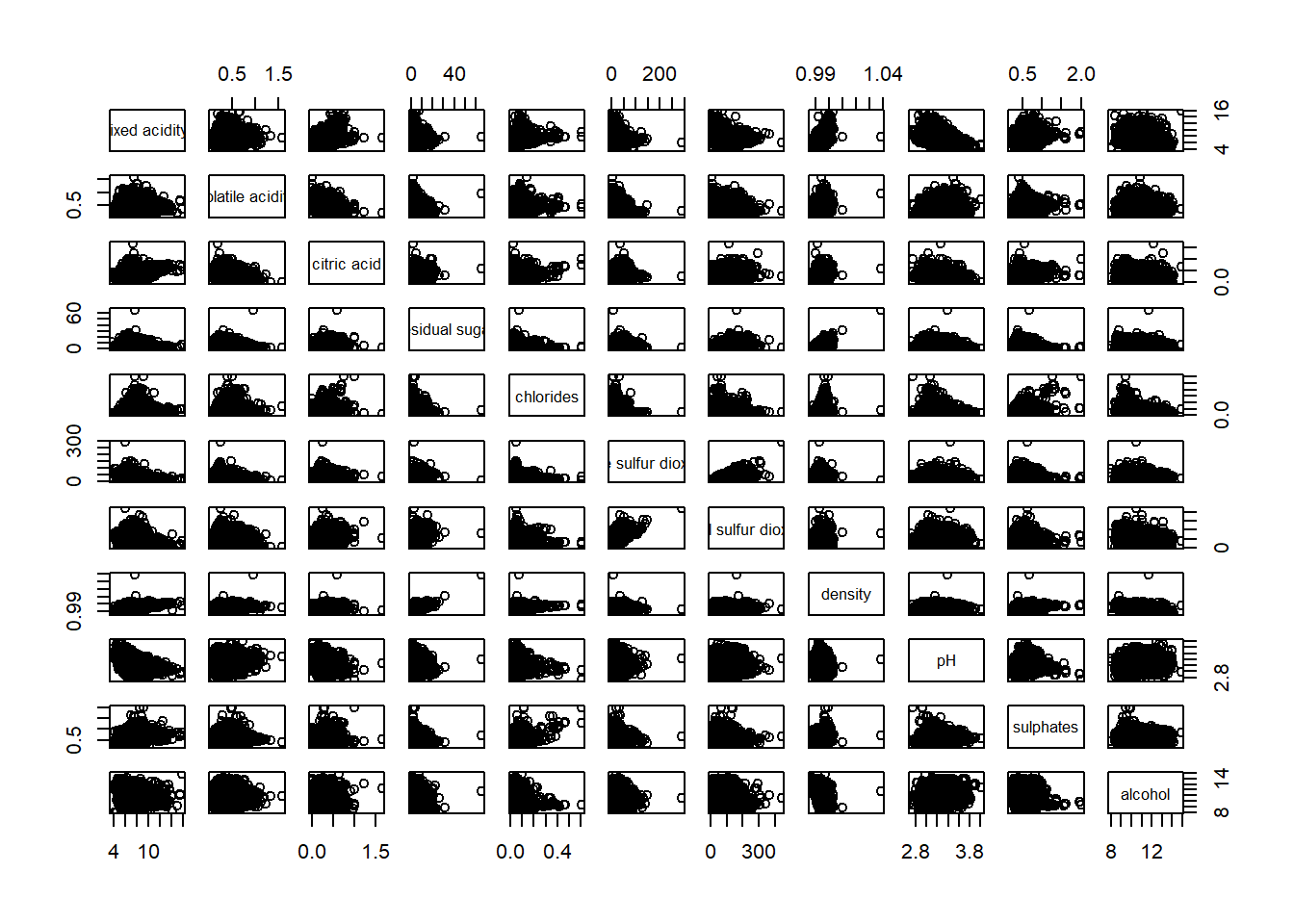
The required input of pairs() can be a matrix or data frame.
Columns 2 to 12 of wine dataframe is used to build the next scatterplot matrix. The variables are: fixed acidity, volatile acidity, citric acid, residual sugar, chlorides, free sulfur dioxide, total sulfur dioxide, density, pH, sulphates and alcohol.
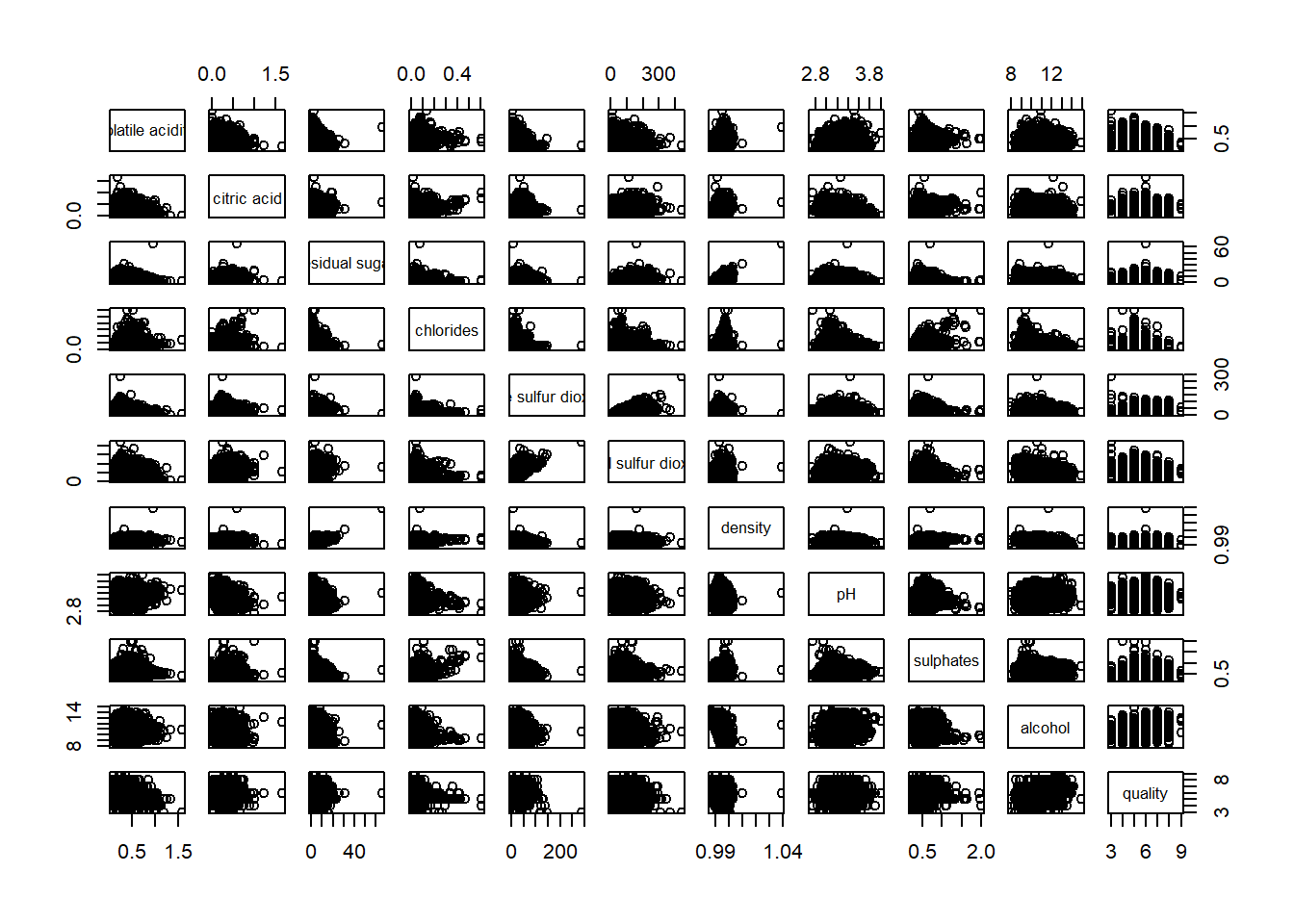
Drawing the lower corner
pairs() function of R Graphics provided many customisation arguments. For example, it is a common practice to show either the upper half or lower half of the correlation matrix instead of both. This is because a correlation matrix is symmetric.
To show the lower half of the correlation matrix, the upper.panel argument will be used.
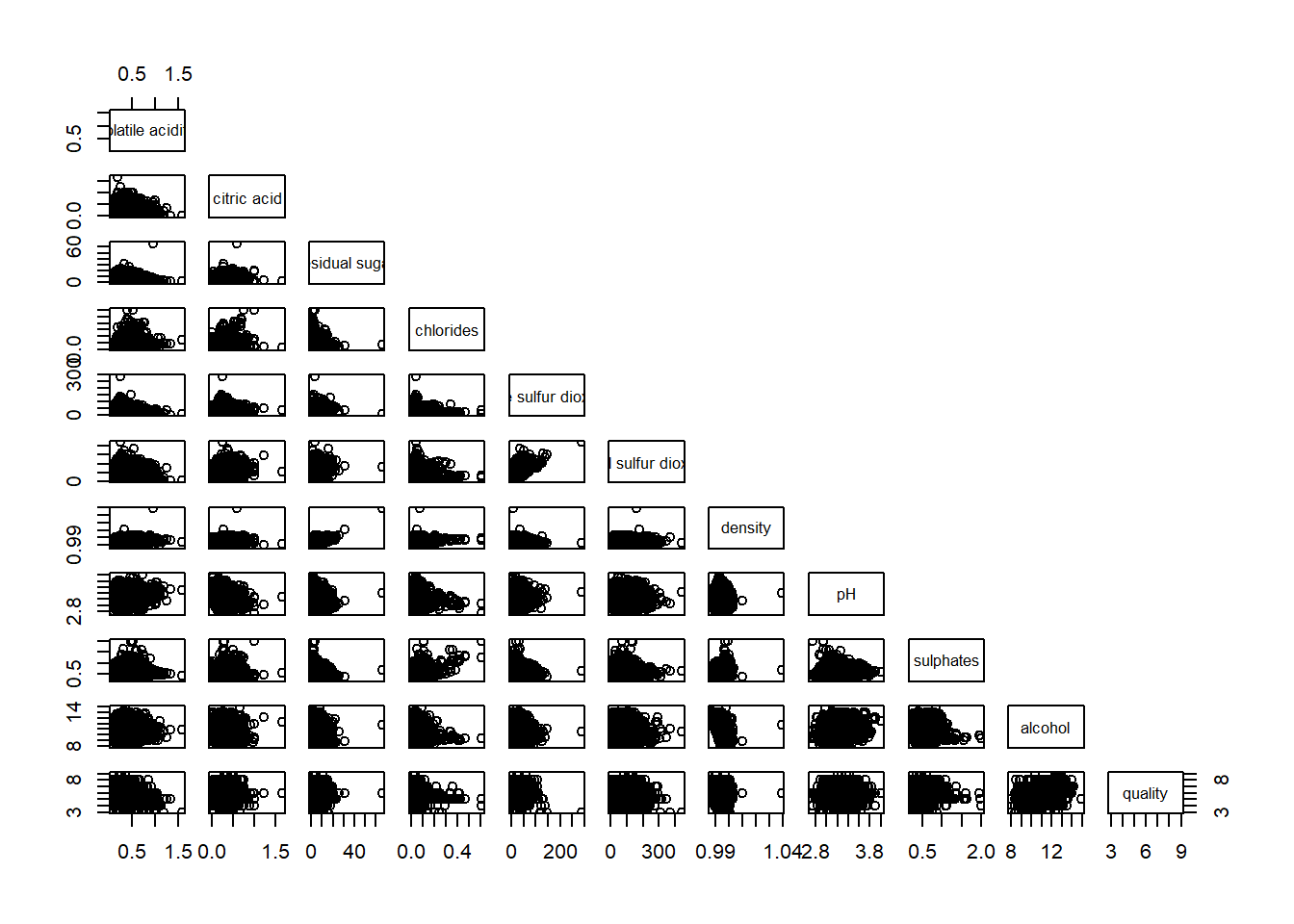
Similarly, we can display the upper half of the correlation matrix.
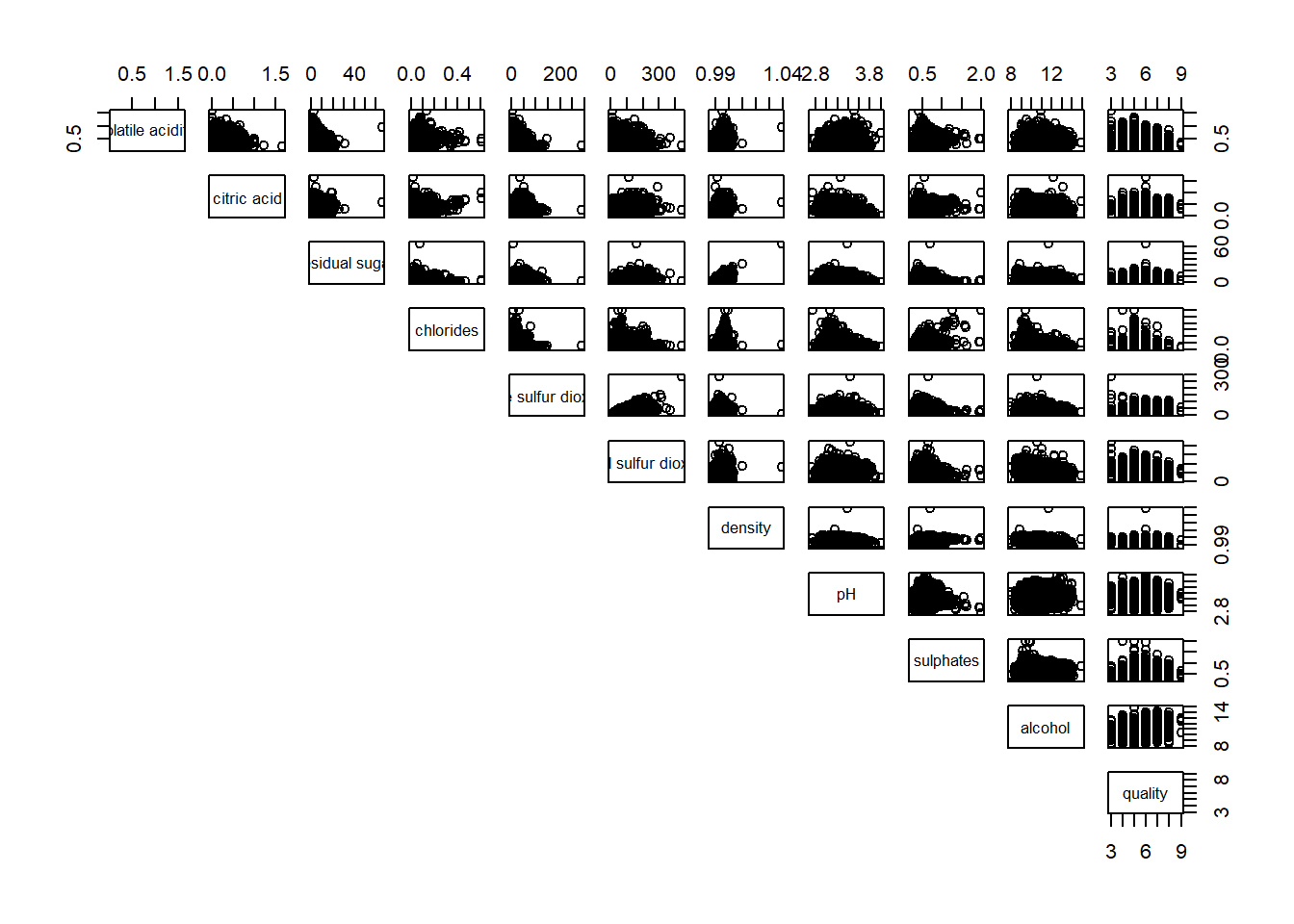
Including with correlation coefficients
To show the correlation coefficient of each pair of variables instead of a scatter plot, panel.cor() function will be used. This will also show higher correlations in a larger font.
Show the code
panel.cor <- function(x, y, digits=2, prefix="", cex.cor, ...) {
usr <- par("usr")
on.exit(par(usr))
par(usr = c(0, 1, 0, 1))
r <- abs(cor(x, y, use="complete.obs"))
txt <- format(c(r, 0.123456789), digits=digits)[1]
txt <- paste(prefix, txt, sep="")
if(missing(cex.cor)) cex.cor <- 0.8/strwidth(txt)
text(0.5, 0.5, txt, cex = cex.cor * (1 + r) / 2)
}

pairs(wine[,2:12],
      upper.panel = panel.cor)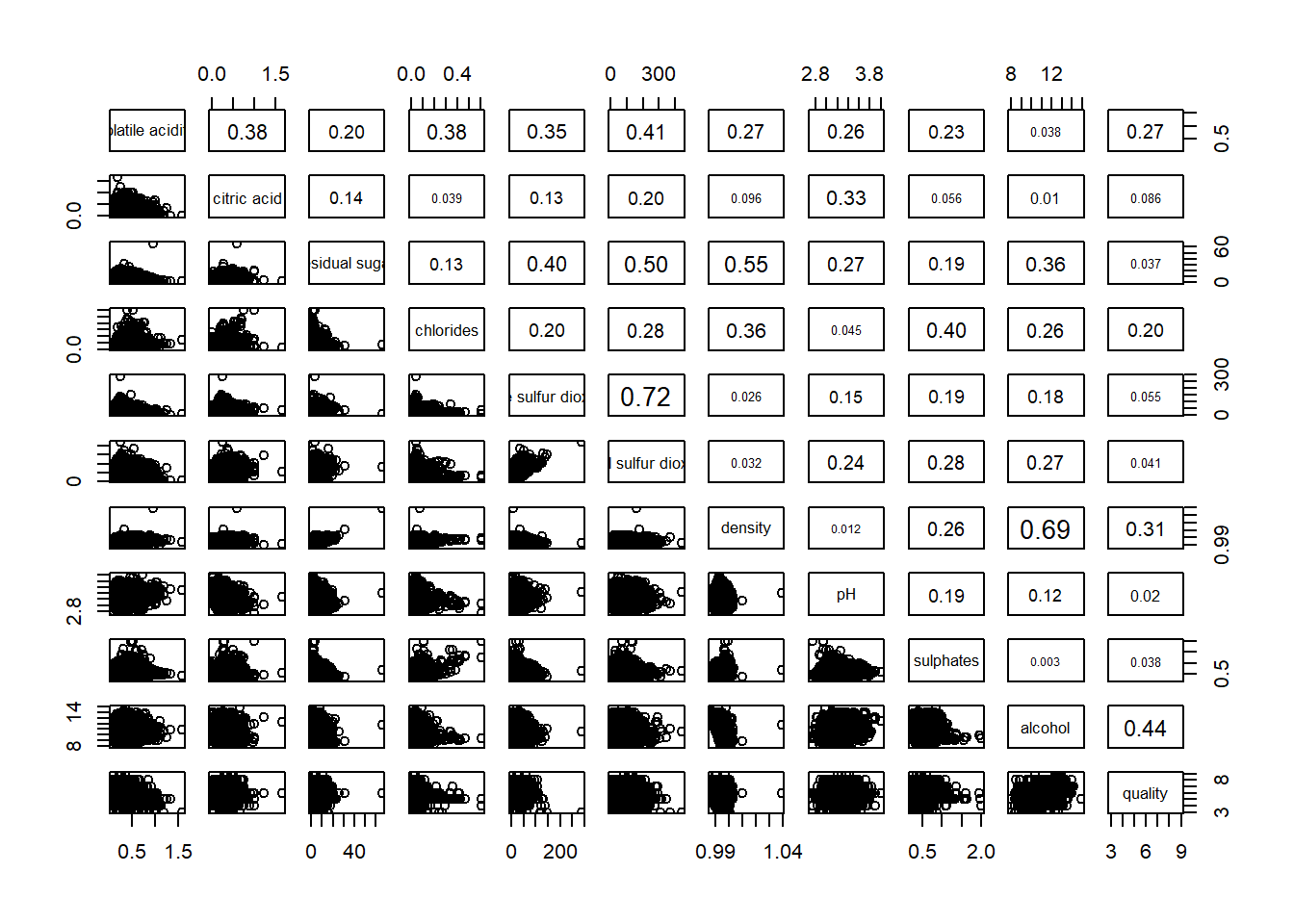
11.4 Visualise Correlation Matrix using ggcormat() function
One of the major limitation of the correlation matrix is that the scatter plots appear very cluttered when the number of observations is relatively large (i.e. more than 500 observations). To overcome this problem, Corrgram data visualisation technique suggested by D. J. Murdoch and E. D. Chow (1996) and Friendly, M (2002) and will be used.
There are at least three R packages provide function to plot corrgram, they are:
On top that, some R packages like ggstatsplot package also provides functions for building corrgram.
In this section, you will learn how to visualise correlation matrix by using ggcorrmat() of ggstatsplot package.
The basic plot
ggcorrmat() can provide a comprehensive and yet professional statistical report as shown in the figure below.
Show the code
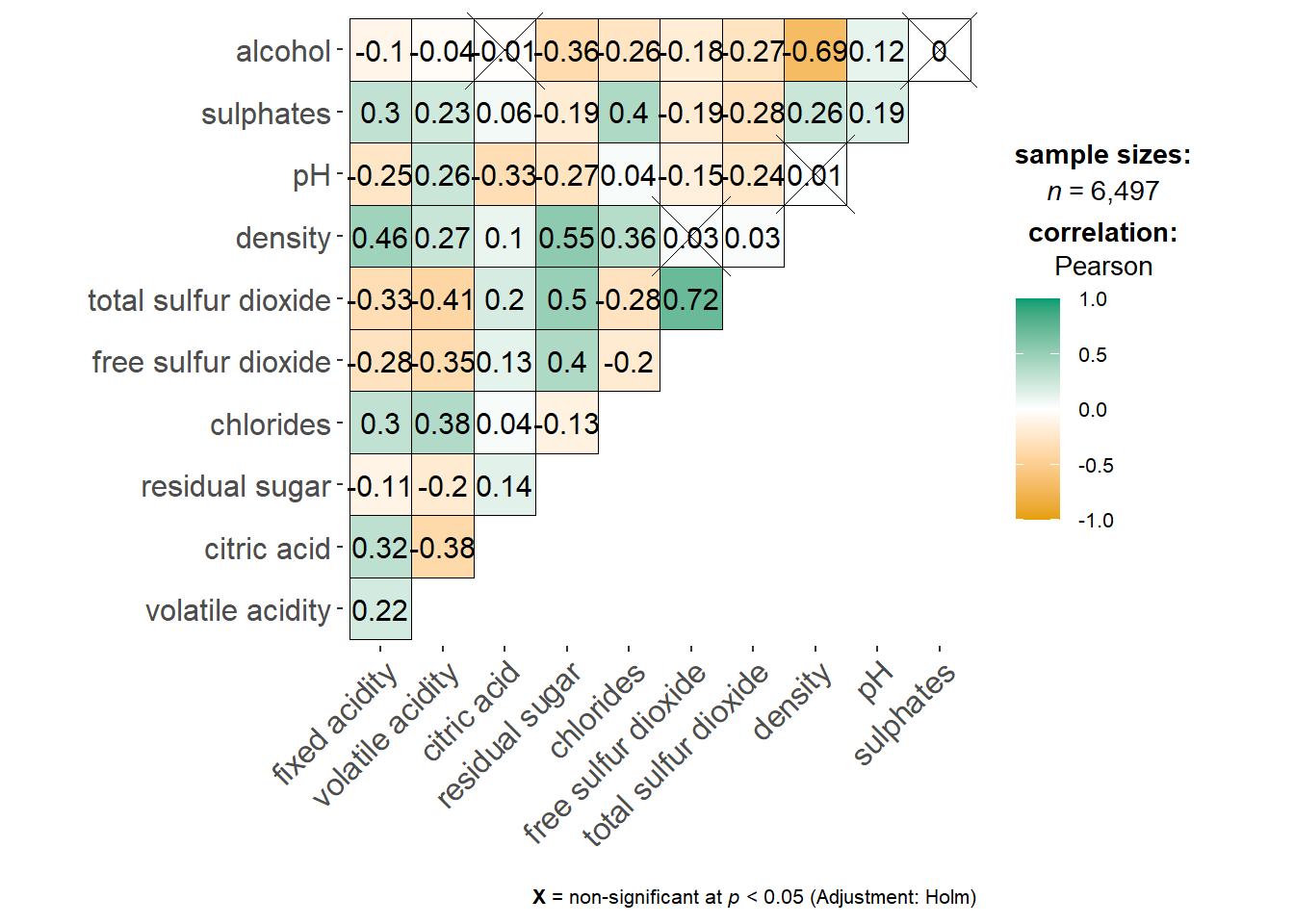
The ggcorrmat() function from the ggstatsplot package can conflict with the titleGrob() function from the ggpubr package. Both packages have functions with the same name, which is why we have to prefix the function with “ggstatsplot::”.
Let’s touch up the plot.
Show the code
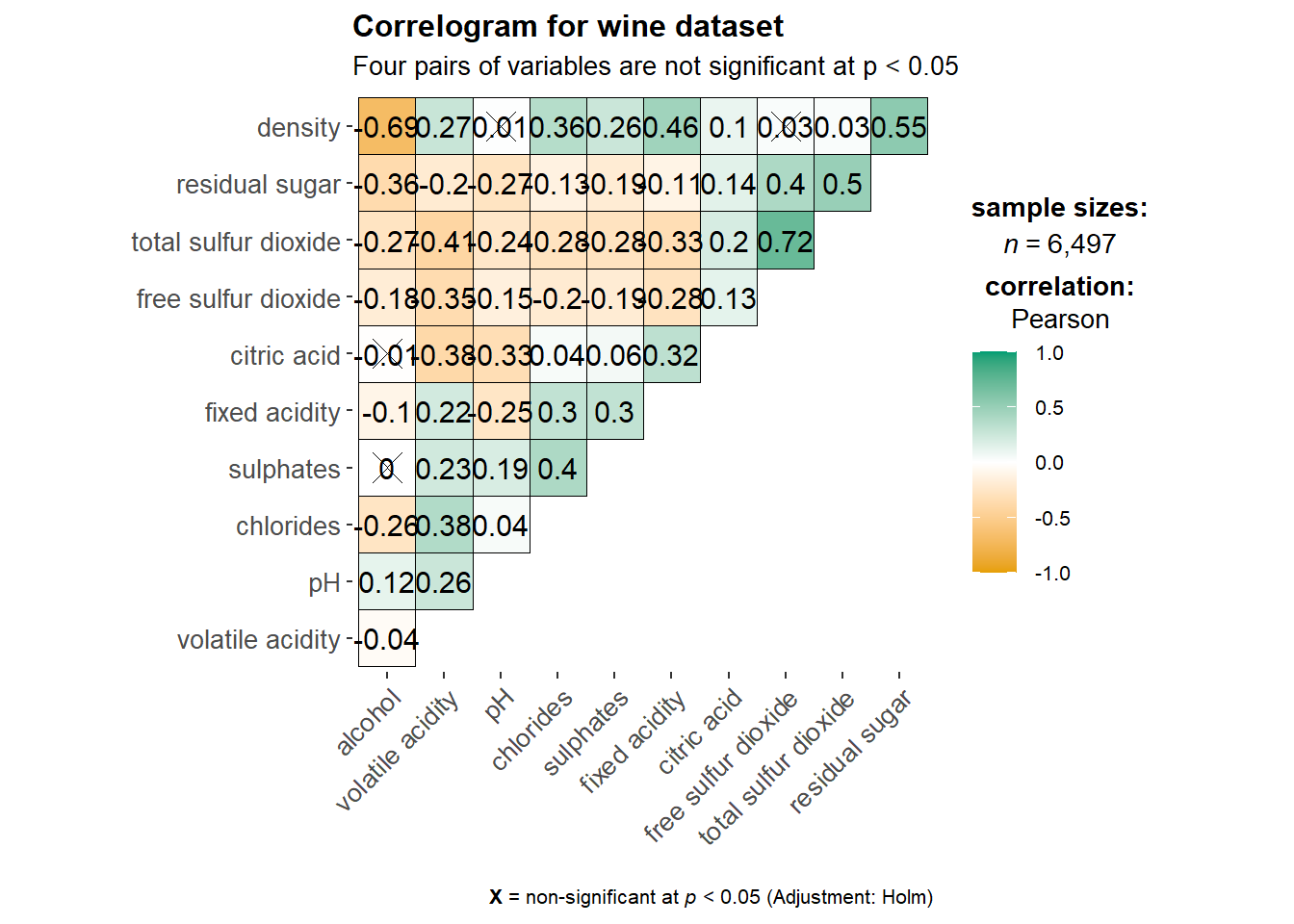
Things to note:
cor.varsargument is used to compute the correlation matrix needed to build the corrgram.ggcorrplot.argsargument provide additional (mostly aesthetic) arguments that will be passed toggcorrplot::ggcorrplot()function. The list should avoid any of the following arguments since they are already internally being used:corr,method,p.mat,sig.level,ggtheme,colors,lab,pch,legend.title,digits.
The following codes can be used to control specific components of the plot such as the font size of the x-axis, y-axis and the statistical report.
Building multiple plots
Since ggstasplot is an extension of ggplot2, it also supports faceting. However the feature is not available in ggcorrmat() but in the grouped_ggcorrmat() of ggstatsplot.
Show the code
grouped_ggcorrmat(
data = wine,
cor.vars = 1:11,
grouping.var = type,
type = "robust",
p.adjust.method = "holm",
plotgrid.args = list(ncol = 1),
ggcorrplot.args = list(outline.color = "black",
hc.order = TRUE,
tl.cex = 3),
annotation.args = list(
tag_levels = "a",
title = "Correlogram for wine dataset",
subtitle = "The measures are: alcohol, sulphates, fixed acidity, citric acid, chlorides, residual sugar, density, free sulfur dioxide and volatile acidity",
caption = "Dataset: UCI Machine Learning Repository"
),
ggplot.component = list(
    theme(text=element_text(size=5),
      axis.text.x = element_text(size = 8),
      axis.text.y = element_text(size = 8)))
) 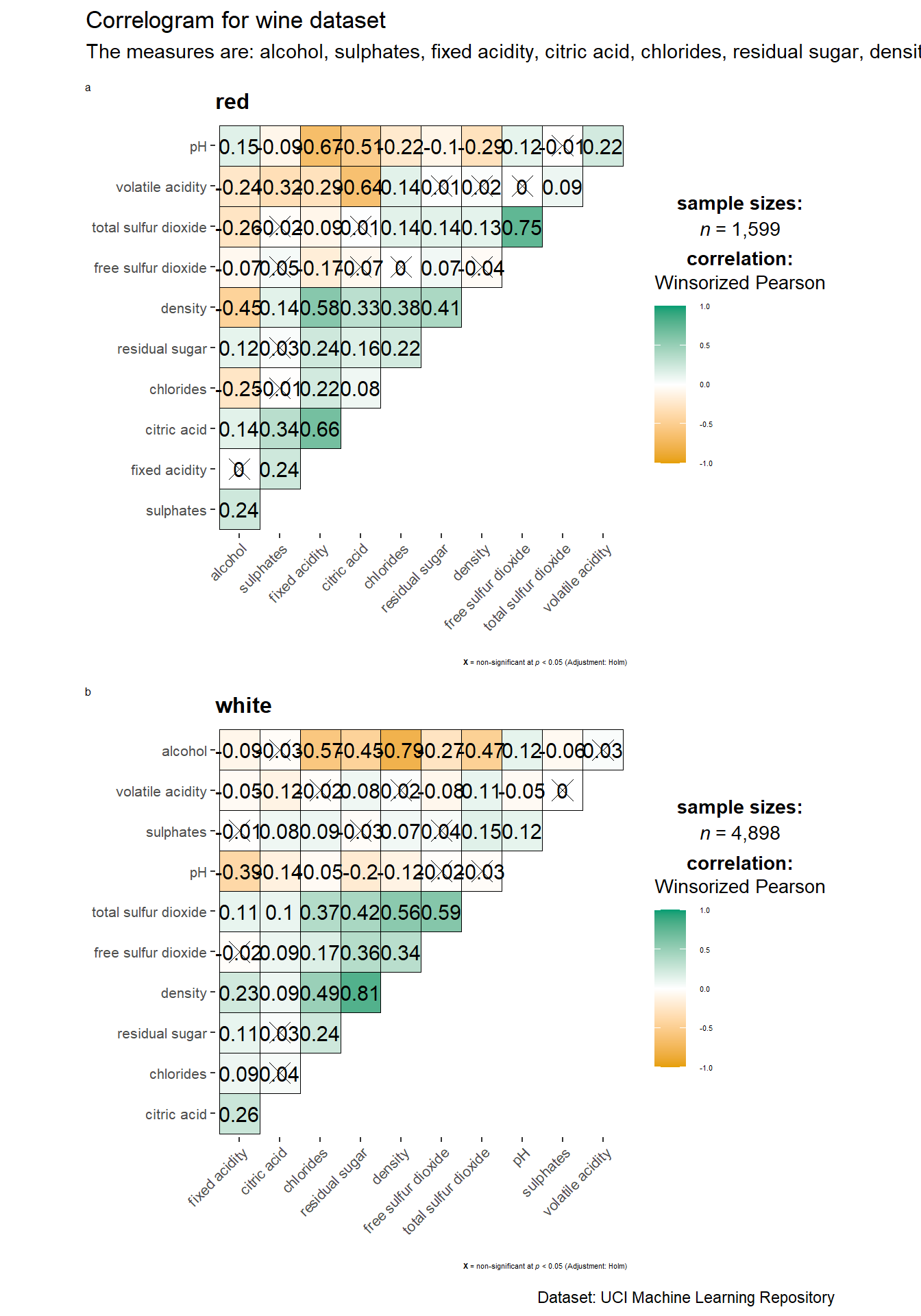
Things to note:
to build a facet plot, the only argument needed is
grouping.var.Behind
group_ggcorrmat(), patchwork package is used to create the multiplot.plotgrid.argsargument provides a list of additional arguments passed to patchwork::wrap_plots, except for guides argument which was separately specified earlier.Likewise,
annotation.argsargument is calling plot annotation arguments of patchwork package.
11.5 Visualise Correlation Matrix Using corrplot package
Getting started with corrplot Before we can plot a corrgram using corrplot(), we need to compute the correlation matrix of wine data frame. Thereafter, corrplot() is used to plot the corrgram by using all the default settings.
Show the code
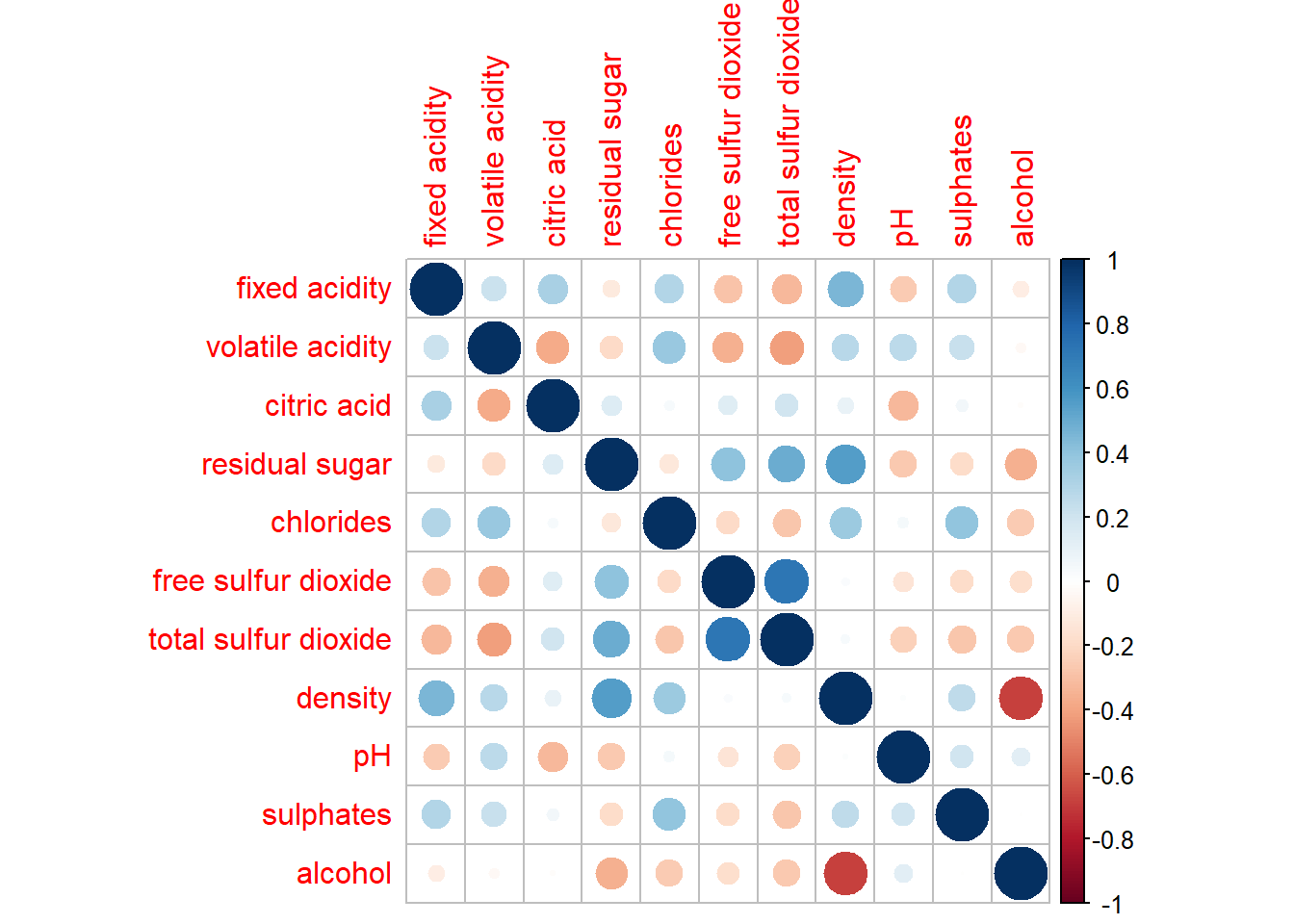
Notice that the default visual object used to plot the corrgram is circle. The default layout of the corrgram is a symmetric matrix. The default colour scheme is diverging blue-red. Blue colours are used to represent pair variables with positive correlation coefficients and red colours are used to represent pair variables with negative correlation coefficients. The intensity of the colour or also know as saturation is used to represent the strength of the correlation coefficient. Darker colours indicate relatively stronger linear relationship between the paired variables. On the other hand, lighter colours indicates relatively weaker linear relationship.
Working with visual geometrics
In corrplot package, there are seven visual geometrics (parameter method) can be used to encode the attribute values. They are: circle, square, ellipse, number, shade, color and pie. The default is circle. As shown in the previous section, the default visual geometric of corrplot matrix is circle. However, this default setting can be changed by using the method argument.

Working with layout
corrplor() supports three layout types, namely: “full”, “upper” or “lower”. The default is “full” which display full matrix. The default setting can be changed by using the type argument of corrplot().
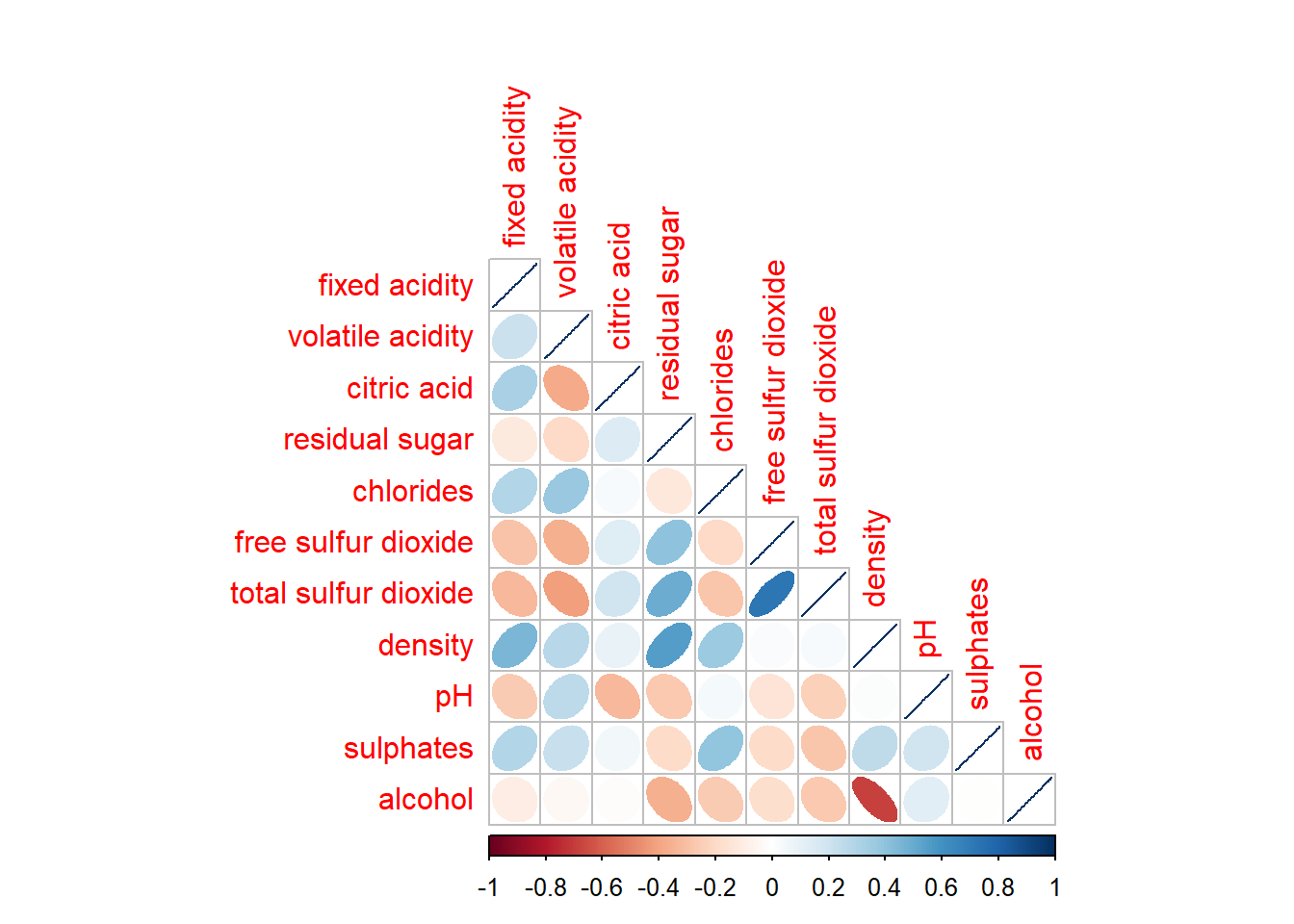
The default layout of the corrgram can be further customised. For example, arguments diag and tl.col are used to turn off the diagonal cells and to change the axis text label colour to black colour respectively.
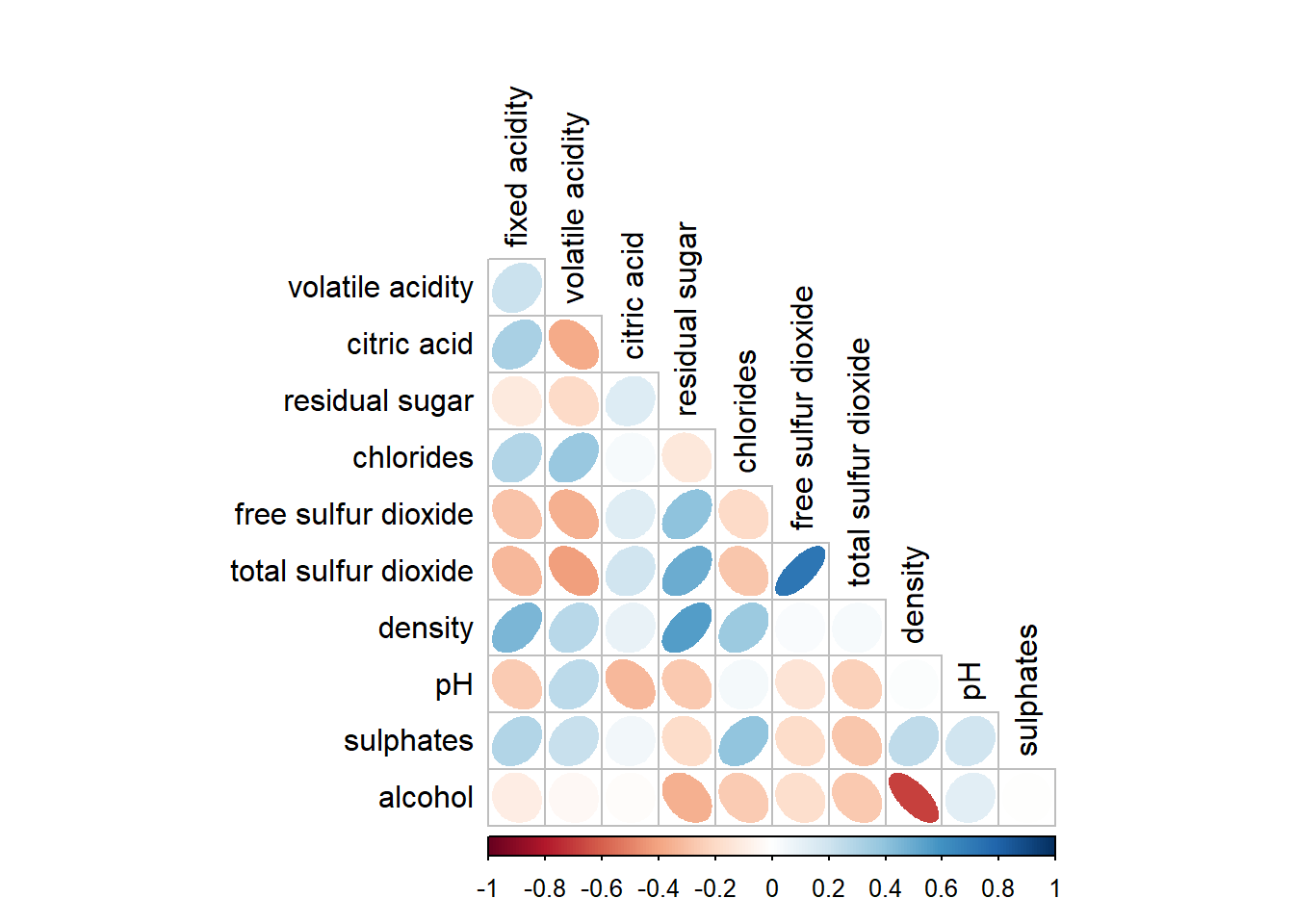
We can also experiment with other layout design argument such as tl.pos, tl.cex, tl.offset, cl.pos, cl.cex and cl.offset,
Working with mixed layout
With corrplot package, it is possible to design corrgram with mixed visual matrix of one half and numerical matrix on the other half. In order to create a coorgram with mixed layout, the corrplot.mixed(), a wrapped function for mixed visualisation style will be used.
Show the code
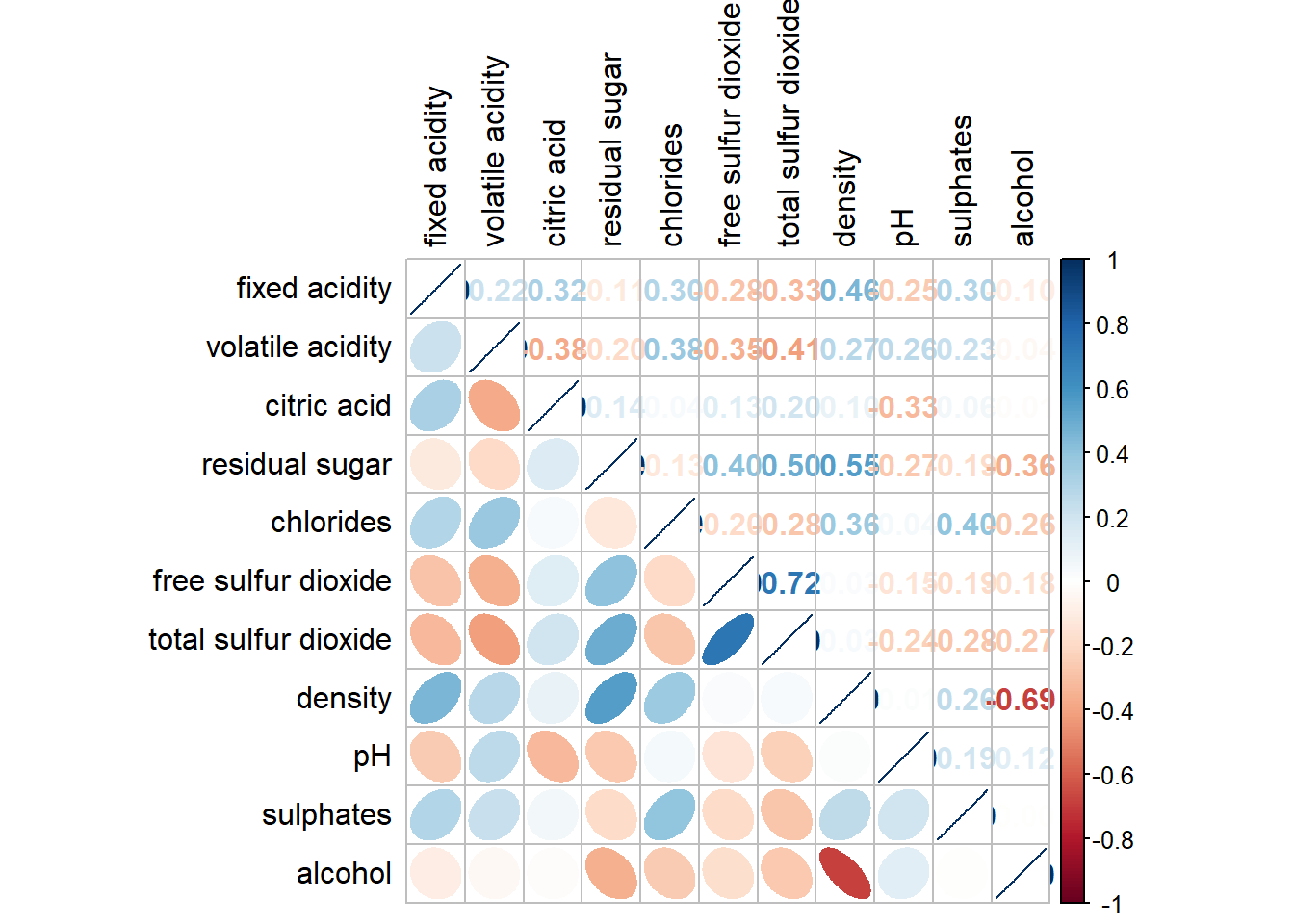
Notice that argument lower and upper are used to define the visualisation method used. In this case ellipse is used to map the lower half of the corrgram and numerical matrix (i.e. number) is used to map the upper half of the corrgram. The argument tl.pos, on the other, is used to specify the placement of the axis label. Lastly, the diag argument is used to specify the glyph on the principal diagonal of the corrgram.
11.5.1 Combining corrgram with the significant test
In statistical analysis, we are also interested to know which pair of variables their correlation coefficients are statistically significant.
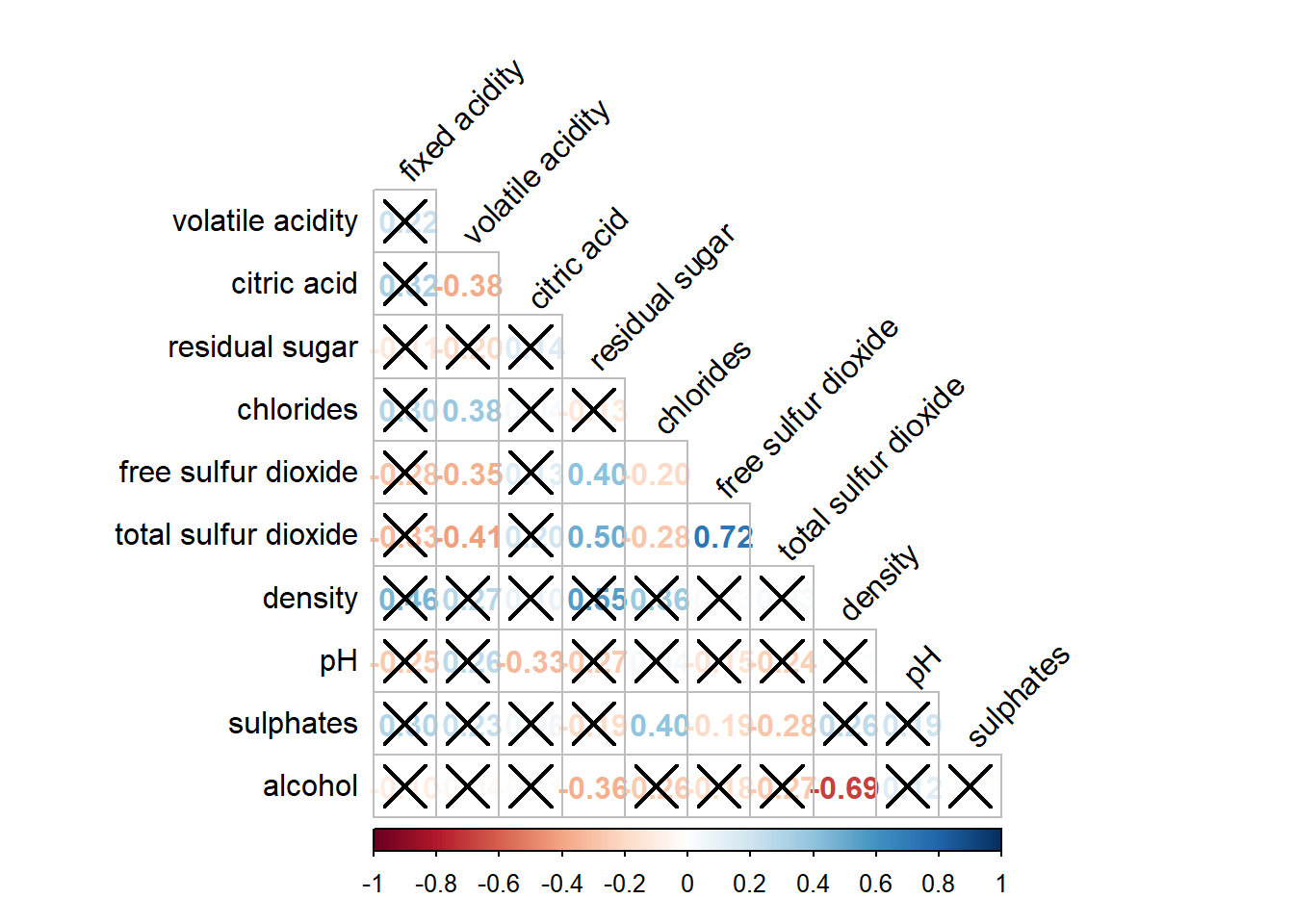
Thee figure below shows a corrgram combined with the significant test. The corrgram reveals that not all correlation pairs are statistically significant. For example the correlation between total sulfur dioxide and free sulfur dioxide is statistically significant at significant level of 0.1 but not the pair between total sulfur dioxide and citric acid.
We can use the cor.mtest() to compute the p-values and confidence interval for each pair of variables.
We can then include the results in the p.mat argument of corrplot() function.
Show the code
Reorder a corrgram
Matrix reorder is very important for mining the hiden structure and pattern in a corrgram. By default, the order of attributes of a corrgram is sorted according to the correlation matrix (i.e. “original”). The default setting can be over-write by using the order argument of corrplot(). Currently, corrplot package support four sorting methods, they are:
“AOE” is for the angular order of the eigenvectors. See Michael Friendly (2002) for details.
“FPC” for the first principal component order.
“hclust” for hierarchical clustering order, and “hclust.method” for the agglomeration method to be used.
- “hclust.method” should be one of “ward”, “single”, “complete”, “average”, “mcquitty”, “median” or “centroid”.
“alphabet” for alphabetical order.
“AOE”, “FPC”, “hclust”, “alphabet”. More algorithms can be found in seriation package.
Show the code
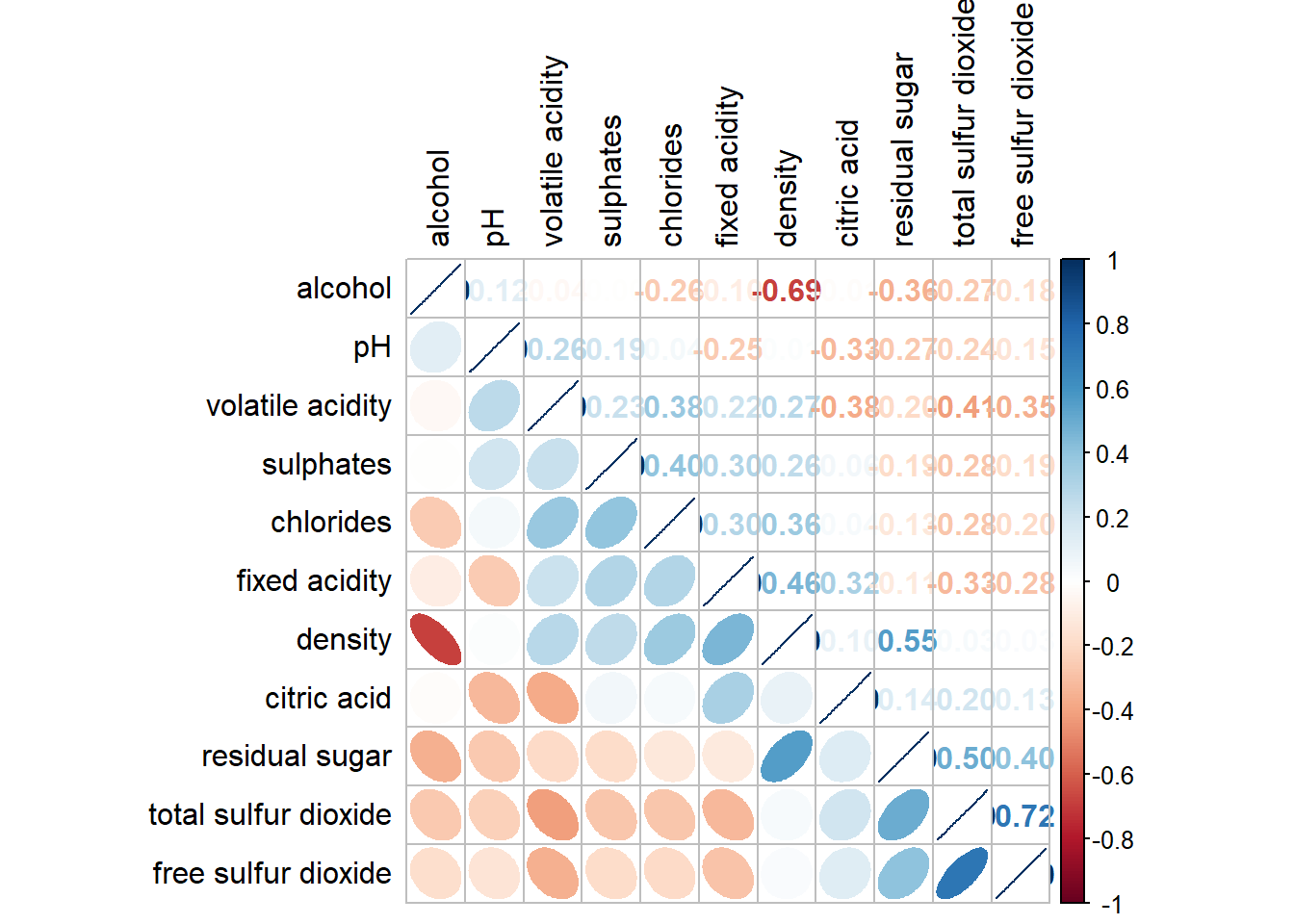
Reordering a correlation matrix using hclust
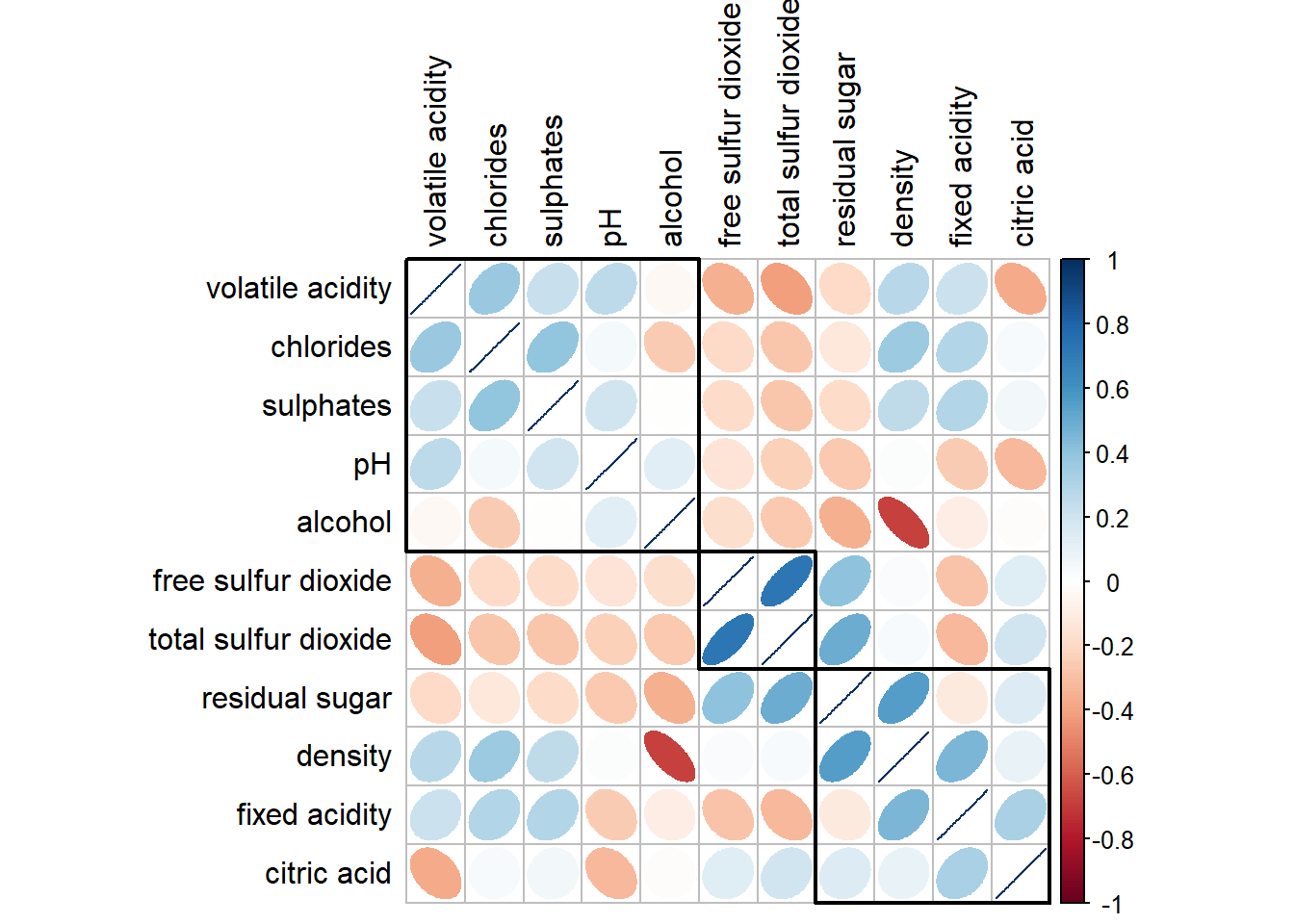
If using hclust, corrplot() can draw rectangles around the corrgram based on the results of hierarchical clustering.
11.6 References
Michael Friendly (2002). “Corrgrams: Exploratory displays for correlation matrices”. The American Statistician, 56, 316–324.
D.J. Murdoch, E.D. Chow (1996). “A graphical display of large correlation matrices”. The American Statistician, 50, 178–180.